
Contents1 sections ↓
Why monitoring NetSuite matters after go-live
Why monitoring matters (even after Go-live)
We all know the development flow, it starts with gathering requirements, designing and building the solution, passing through QA and UAT, and finally reaching the long-awaited go-live. At that point, everything seems to be working.
But what happens next?
Do we just trust that our code will run smoothly forever?
Of course not. Errors will happen, performance will fluctuate, and business-critical processes can be affected silently, unless we monitor.
What should we monitor in NetSuite?
The most powerful window into your account’s behavior is the logs generated by scripts, workflows, and services.
But it’s not just about catching errors, monitoring performance is just as important. A script might not fail, but it could still be slow, hurting the user experience and wasting system resources.
That’s why how we log matters as much as what we log.
Logging: Principles to keep your monitoring useful
1. Use the right log level
Logging a customer ID? That’s debug, not error. The right log level helps surface actual issues without being buried under irrelevant messages.
// ❌ Incorrect log level
log.error('customer id', customer);
// ✅ Should be
log.debug('customer id', customer);
2. Avoid log spamming
NetSuite enforces log limits. If you emit too many logs, important ones might be lost. Avoid:
Logging inside loops
Logging in frequently triggered services or scripts
Example:
// ⚠️ This will log once per transaction line
for (let line = 0; line < itemCount; line++) {
  log.debug('item', line);
}
3. Set script deployments to "Error" log level
This keeps your logs focused on what matters in production, real issues.
Unhandled errors and email alerts
When scripts crash without a try/catch, NetSuite logs a System error and sends an email alert. You can control:
Whether alerts go to all admins
A specific email address
A group of employees
Performance: What’s slowing NetSuite down?
Some scripts block user interaction (e.g., User Events, Client Scripts), others run in the background (Scheduled, Map/Reduce). But even background processes consume system processors. Each NetSuite account has limited CPU threads, so misused scripts can bottleneck the entire system.
Rule of thumb:*
A user event script running over 1 second is slow. Over 10 seconds is very slow.
*For scripts that block user interaction.
Monitoring tools in NetSuite
✅ Script execution logs
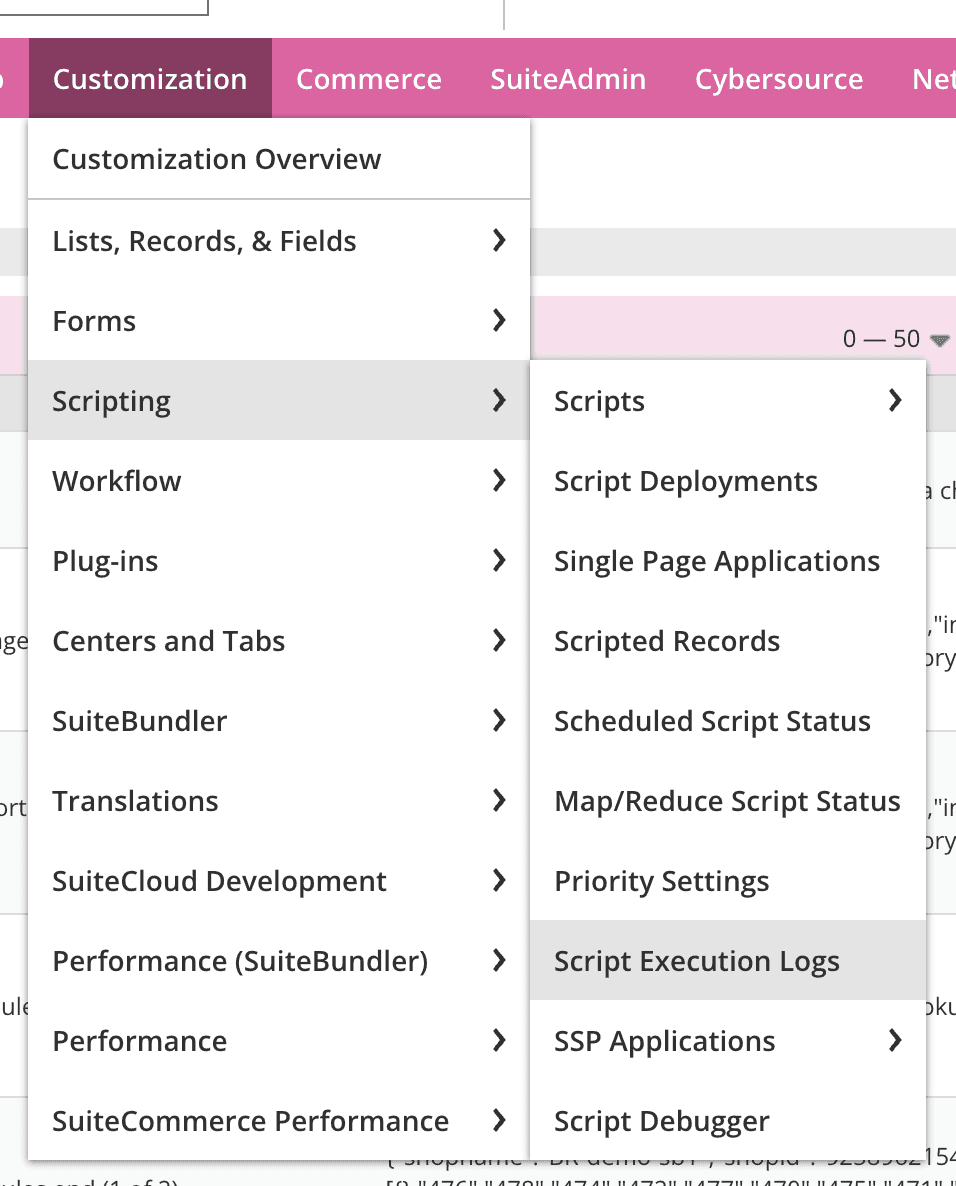
Access this page by navigating to Customization > Scripting > Script Execution Logs.
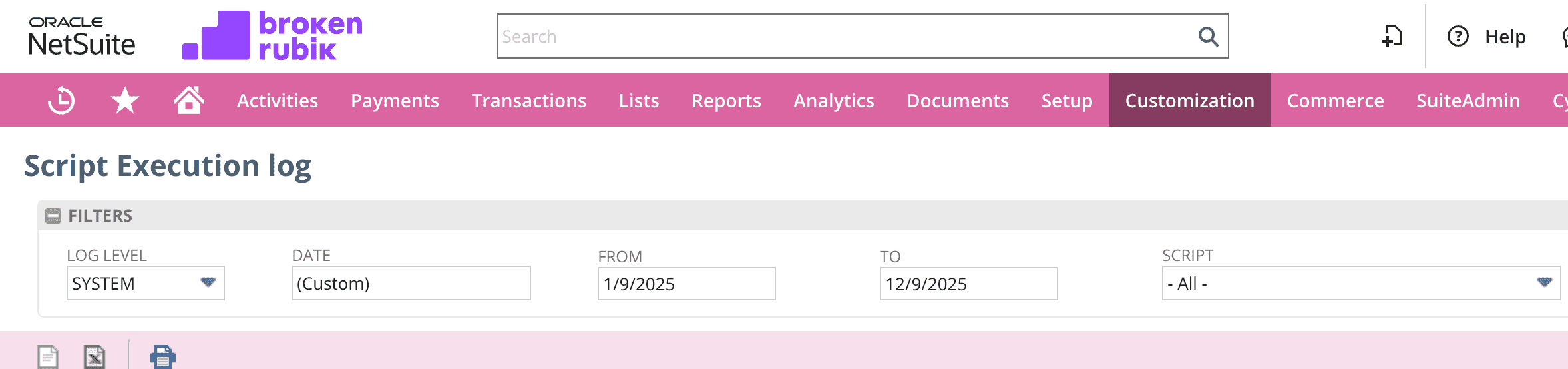
From this page, you can review all of the logs in your account. You can filter by log level, date range or indicating a script name For looking into errors that are occurring in your scripts or processes, make sure to review the recent logs under the "System" and "Error" log levels.
✅ APM (Application Performance Monitoring)
A free SuiteApp that provides:
Page time summary: Breakdown of script and workflow performance by record type.
SuiteScript analysis: Graphs with execution time, logs, and user breakdown.
Processor monitor: Insights into script concurrency and CPU usage.

Once downloaded, you can go to Customization > Performance > Performance Health Dashboard to review your account's health. In case there are any performance issues with your records, scripts or integrations, these will be reported here.

The Page Time Summary page provides rich details on the performance of every record. For example, if you wish to know why saving a Sales Orders is working slowly, you can set the Record Type field to "Sales Order", the operation to "Save" and choose a date range of at least two weeks. APM will list the average performance time, and a breakdown of the different processes that are contributing to this time.
APM will list the average performance time, and a breakdown of the different processes that are contributing to this time.

The SuiteScript Analysis page allows you to view in depth, the performance of a specific script. Indicate the script type, name and entry point, along with a date range where it was used.

The Processor Monitor provides insight on the utilization of the system resources for Scheduled scripts that run on the background. You can view the total number of processors available, the average wait time, the number of failed executions and a detailed breakdown for each script.

Common performance killers in SuiteScript
🔁 API calls inside loops
Instead of calling record.load() or search.run() repeatedly, batch your operations.
Bad example:
// Runs a search per item
for (let item of items) {
  search.lookupFields(...);
}
Better approach:
// Batch fetch all needed fields in one search
search.create({
  filters: [['internalid', 'anyof', itemIds]],
  ...
});
💾 record.save() vs submitFields()
If you're not editing sublists, use submitFields() , it's faster and uses fewer governance units.
Final thoughts
Monitoring isn’t just about debugging, it’s about building reliable systems, ensuring a smooth user experience, and making your solutions sustainable at scale.
Whether you're a developer, administrator, or consultant, setting up proper monitoring practices will save time, money, and stress, and keep your clients happy.
👉 Want to improve monitoring in your NetSuite account?
Contact us at BrokenRubik, we’d love to help.
What clients ask before signing
Need help with your NetSuite project?
Whether it's integrations, customization, or support — let's talk about how we can help.

Martina Karszensztejn
Senior Backend Developer
Senior Backend Developer at BrokenRubik building robust server-side solutions and NetSuite integrations. Specializes in API development, data processing, and system optimization.